
Connecting Zapier to Easy Insight
This integration is currently in beta status. If you want access to try it out, please contact us!
You can use Zapier to push data into Easy Insight via adds or updates. For example, you could create a record in a data source in Easy Insight every time a ticket is created on a system that Easy Insight doesn't otherwise connect to. Every time the ticket is changed, you could have a further update to the record in Easy Insight.
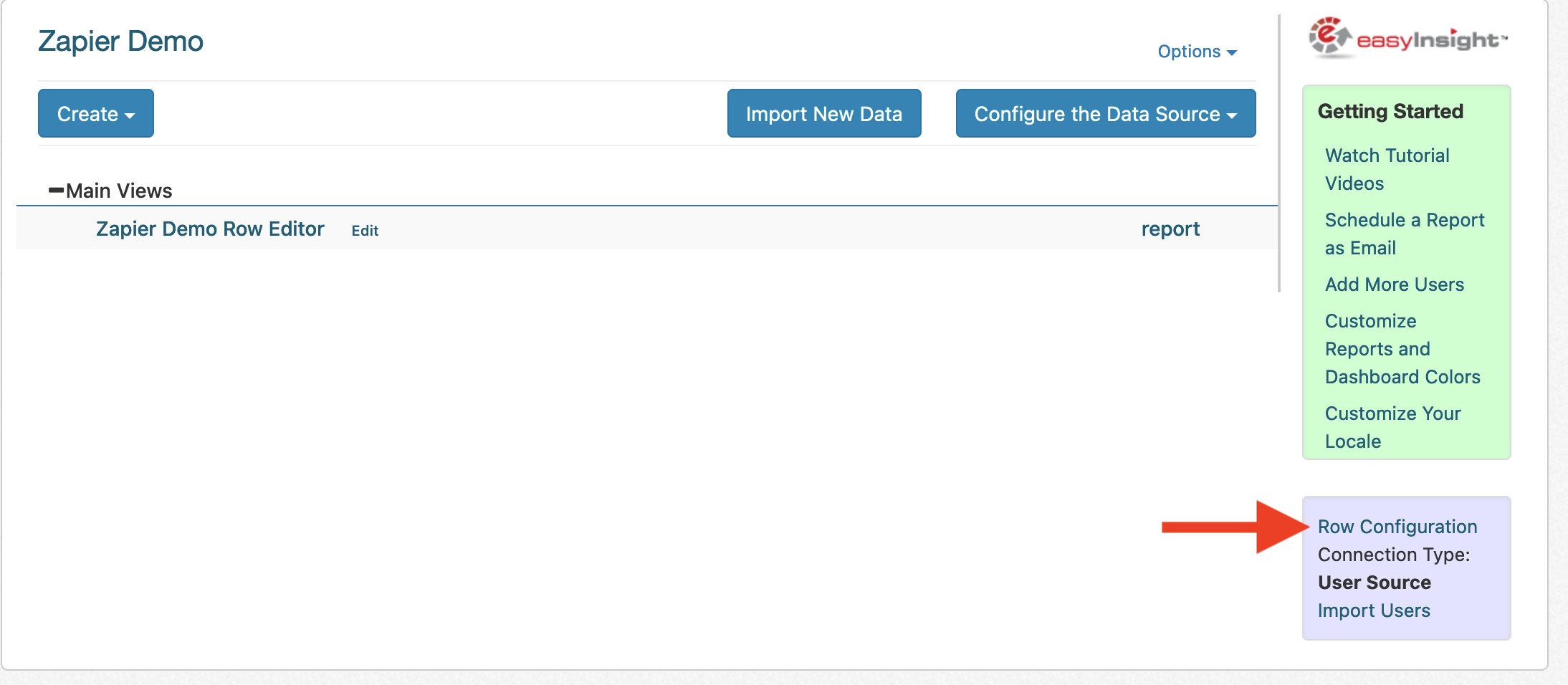
First, you'll need to create the data source in Easy Insight that the zap will push the data into. From the Connections page, go to the User Data Source option and create a new source. Click on the Row Configuration link to set up your fields:
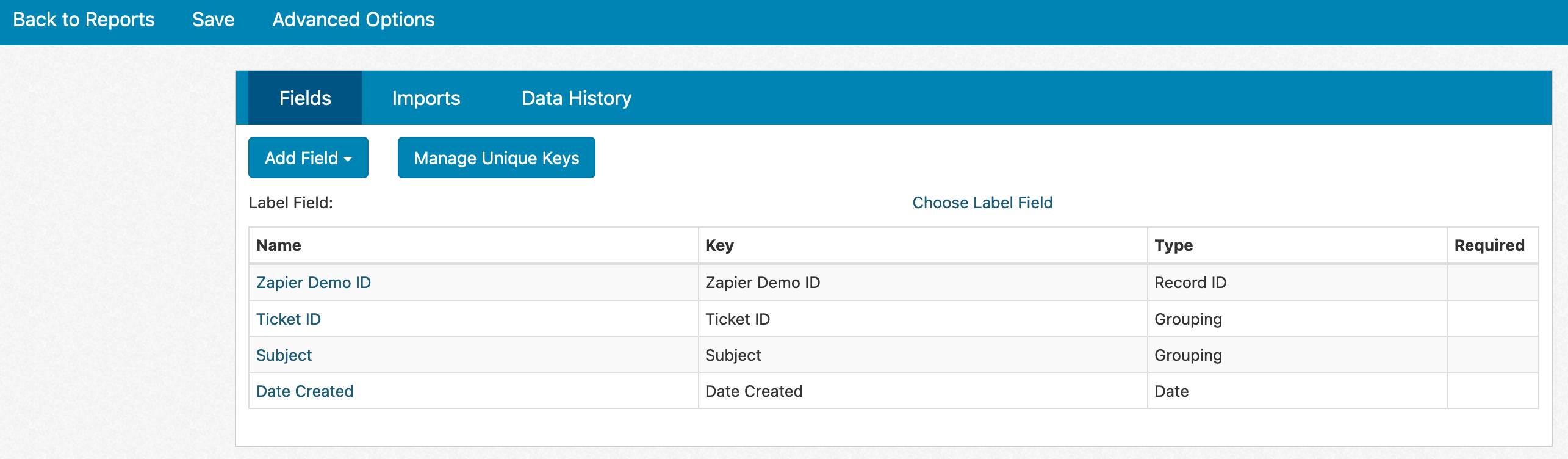
Set up your different fields, then save the source:
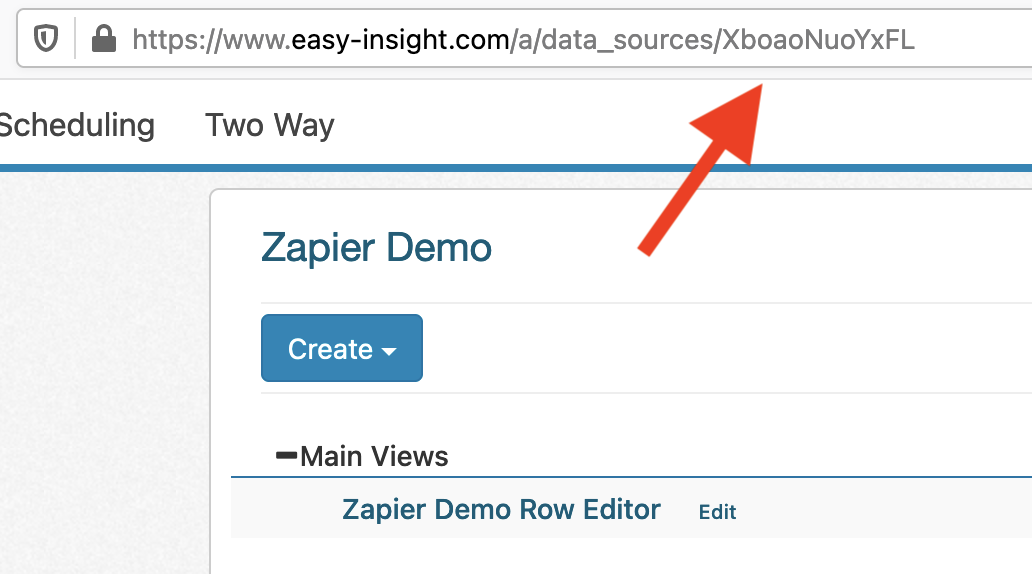
Once your data source is ready, you can set up your zap! You'll need the data source ID, which can be found in the URL of your data source:
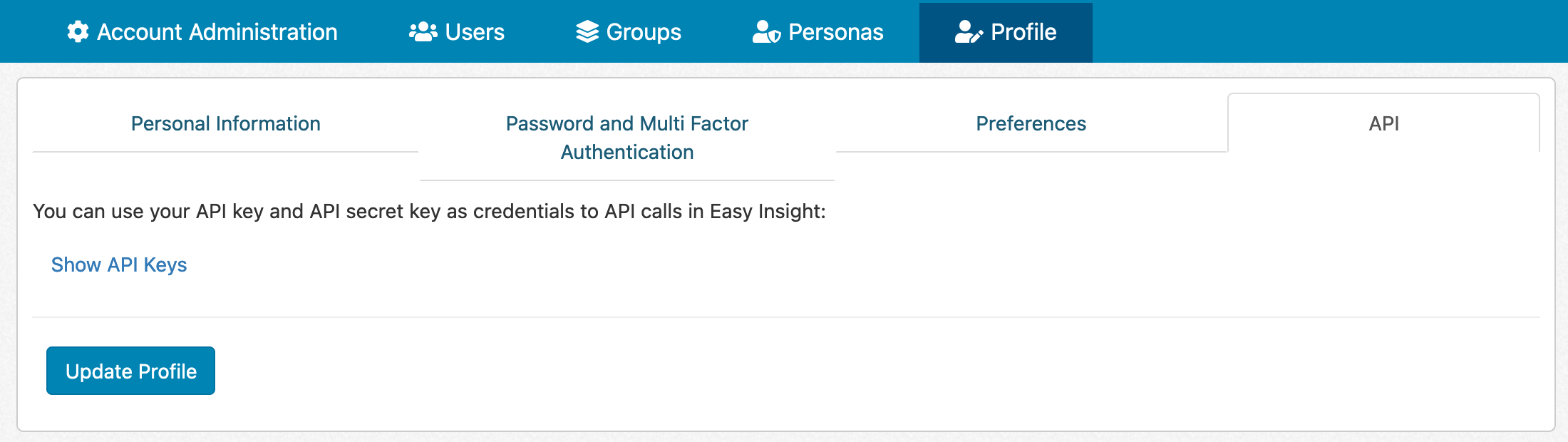
For authentication, we recommend using a user key/secret key. You can find your user key/secret key under your user profile:
After you've set up authentication on your zap, enter the data source ID from earlier and the zap will retrieve the list of fields:
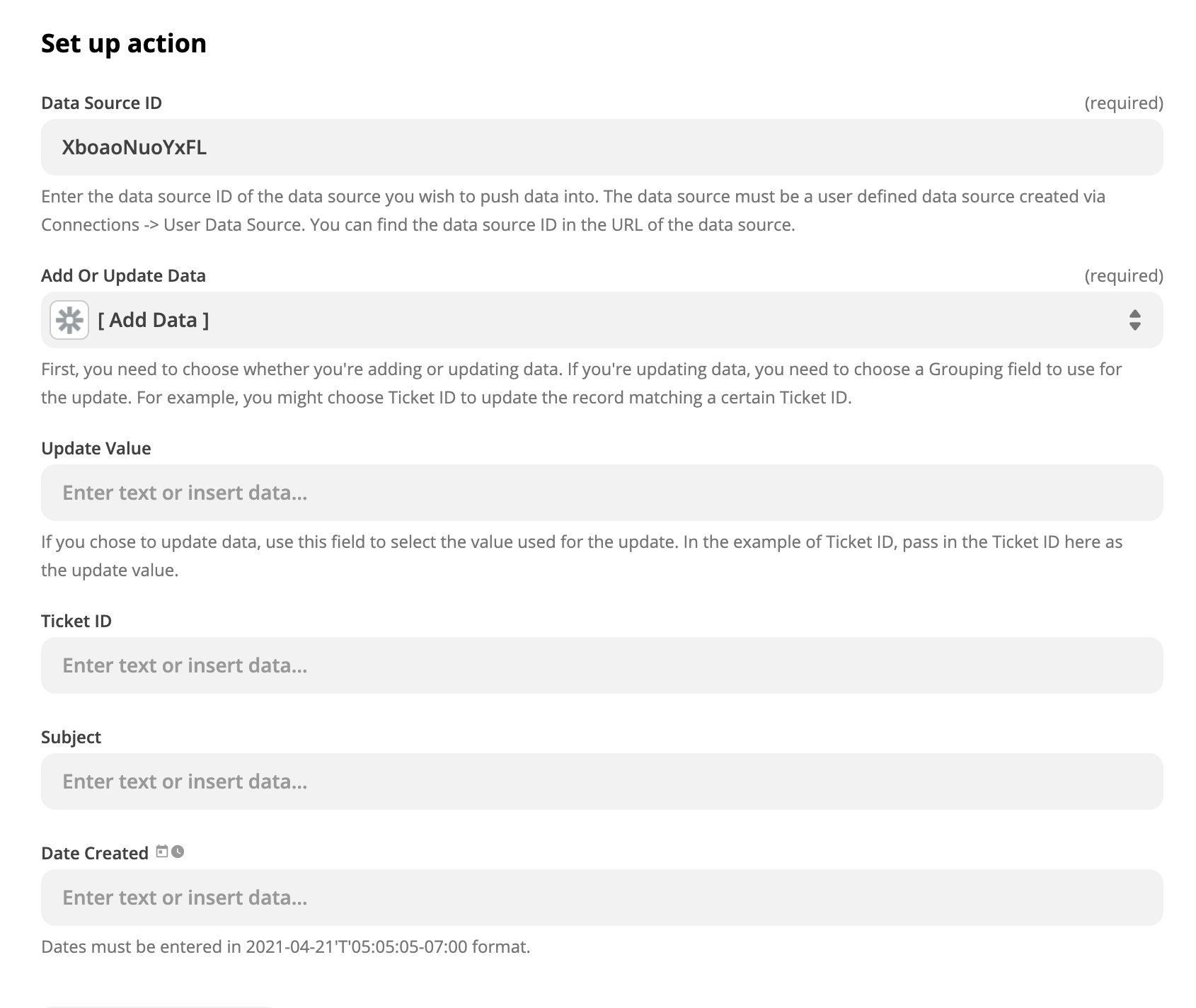
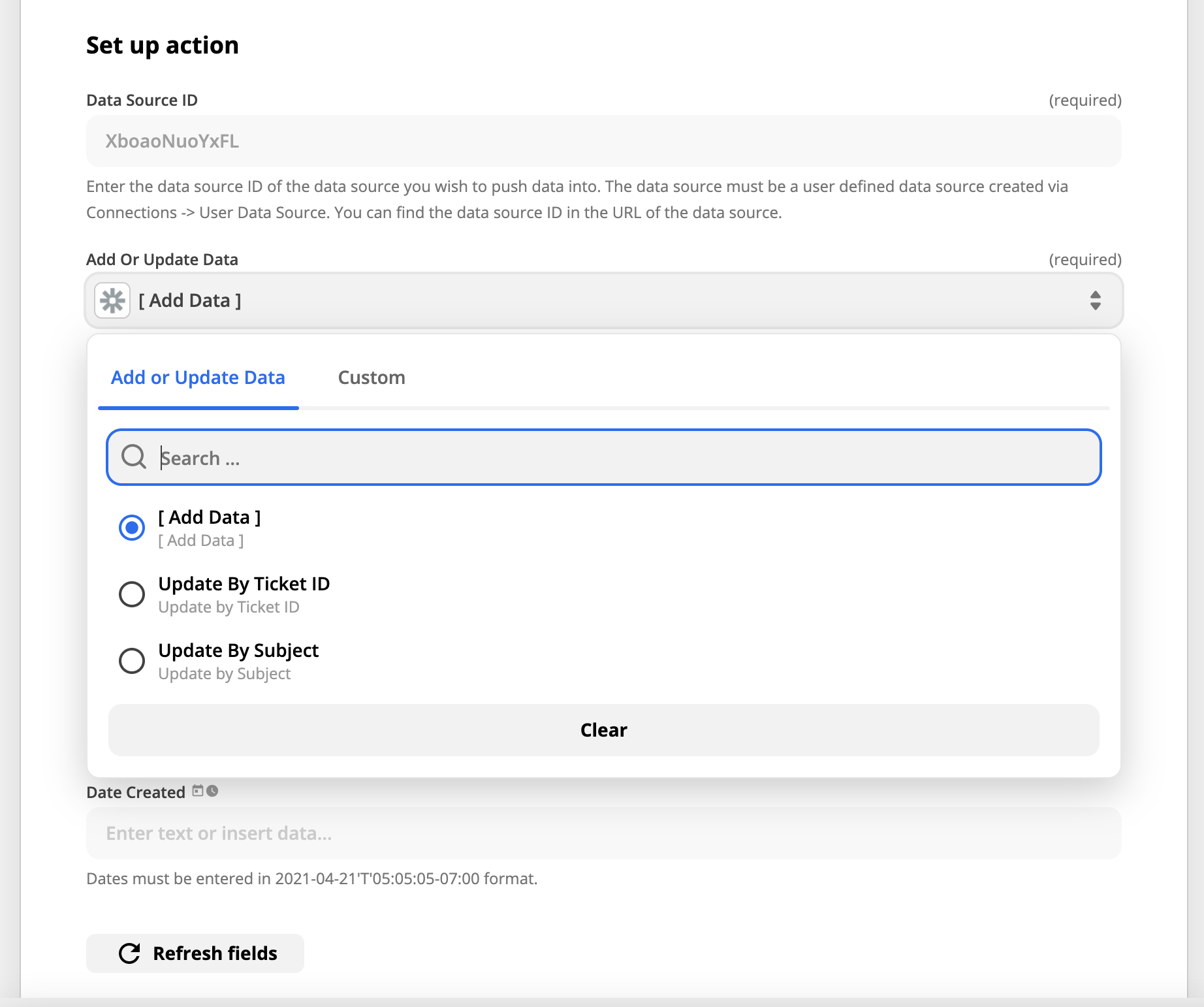
Within the zap, you'll need to choose whether you're doing an add or update of the data. If you're doing an update, you'll need to choose the field you're updating by and the value for the update--in the above ticket example, you might choose Ticket ID and pass in the Ticket ID value as the update value.
With these steps complete, your zap is ready to go! Set up your triggers and the zap will push data into your Easy Insight data source.